Skip to content

Product

See how an order moves through Larder.

Larder connects the records behind orders, stock, traceability, production and delivery so each team can work from the same operating picture.

Inside Larder

One order, from the office to finance.

Actual Larder interface screens with fictional demonstration data. Follow an 80 kg beef order through its allocated lot, a simulated 82.4 kg reading and an illustrative invoice record.

Each screen is a prepared example of that stage. This walkthrough does not demonstrate a completed live transaction or hardware acceptance.

01

Start with the customer order

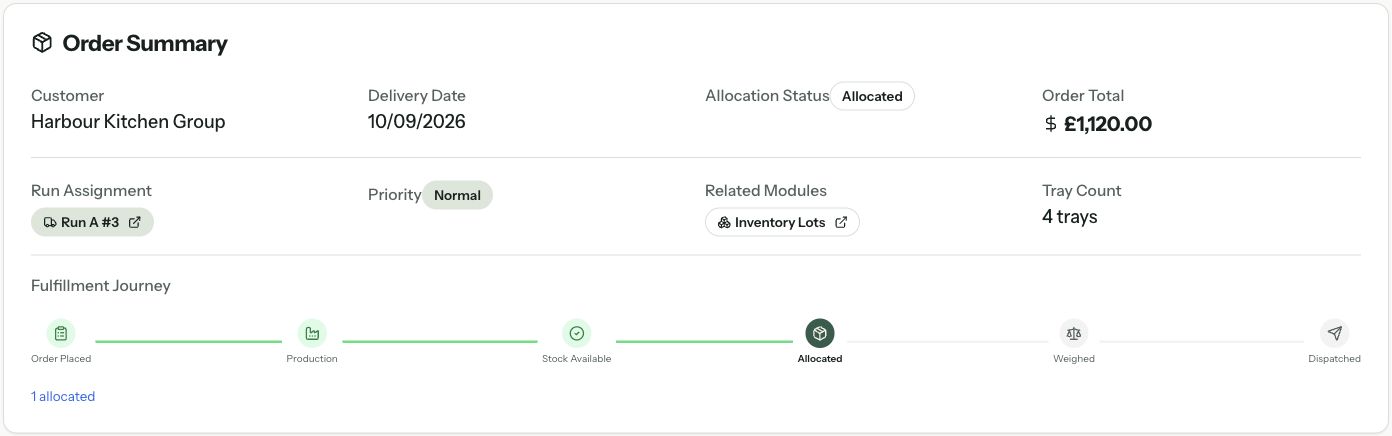
The office records the customer, delivery date, products and agreed rates. The order summary keeps allocation and fulfilment progress visible to the next team.

Order
SO-10428
Ordered
80 kg of beef topside

This order is allocated. Weighing and dispatch have not yet been completed in this screen.

Actual Larder order summary showing Harbour Kitchen Group, allocated status, delivery run A3 and an initial order total of £1,120.
Larder interface · fictional dataEnlarge

02

Reserve stock from an identified lot

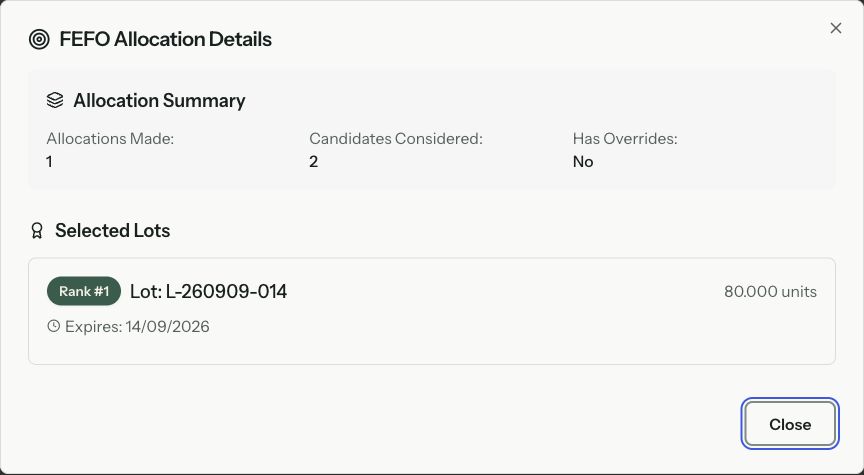
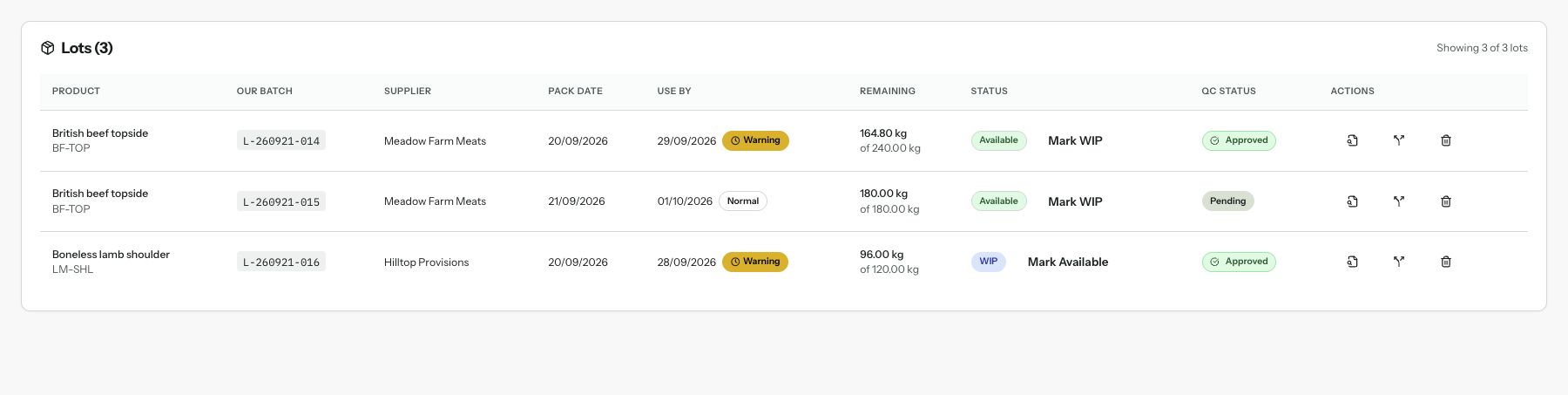
The team reviews the selected batch and expiry date. First-expiry-first-out allocation helps select stock in date order while retaining which lot will supply the order.

Source lot
L-260909-014
Use by
14 September 2026

The allocation panel uses the generic label ‘units’. This example product is measured in kilograms, as shown on the weighing screen.

Actual Larder allocation details showing selected lot L-260909-014, expiry 14 September 2026 and no override.
Larder interface · fictional dataEnlarge

03

Record what is actually packed

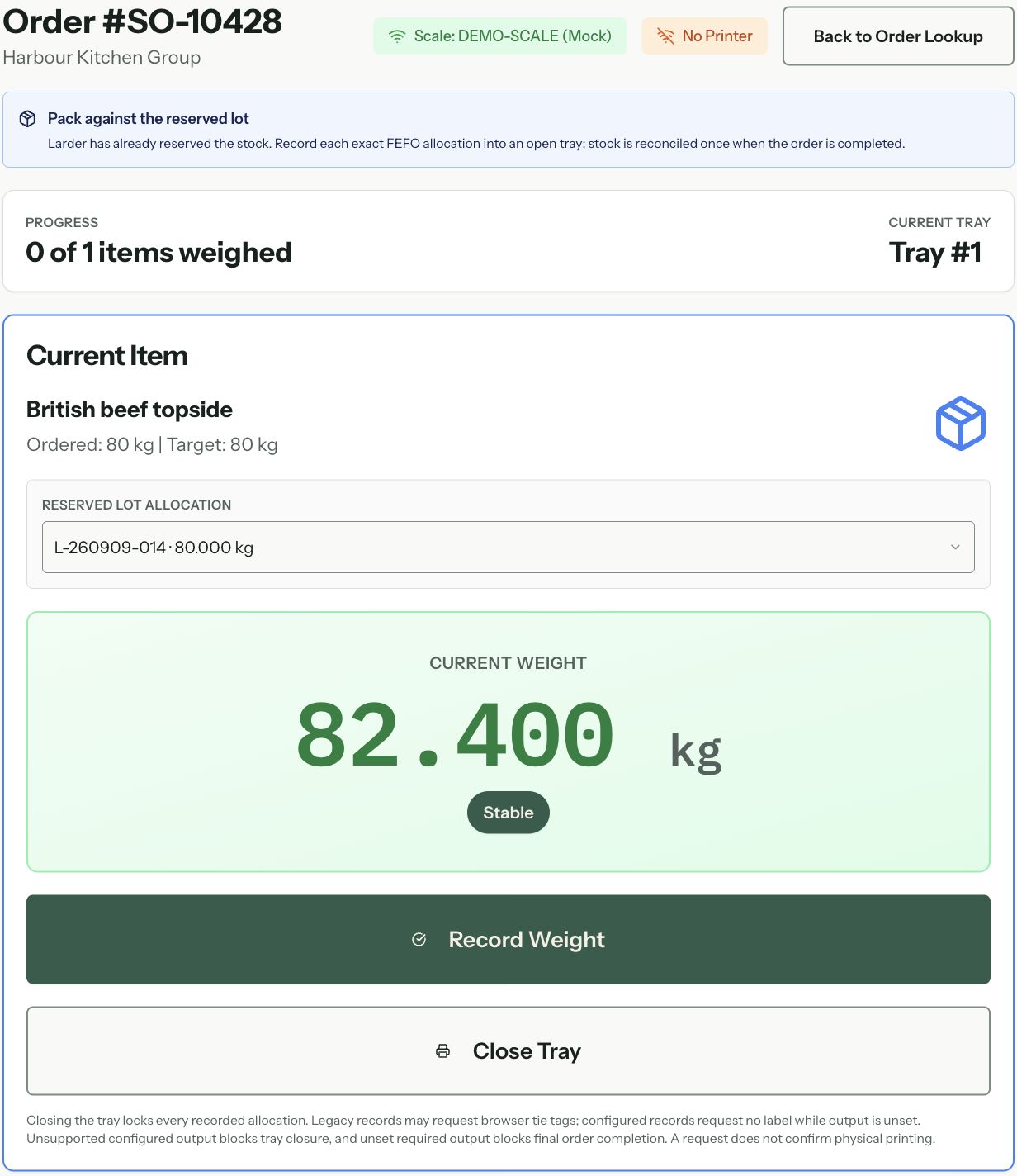
The operator selects the reserved lot and records its actual weight against the order line. The weighing screen keeps the order quantity, lot and current reading together.

Ordered weight
80 kg
Simulated reading
82.4 kg

This is a simulated scale reading before recording. Compatible scales, labels, printers and completion rules must be tested at the customer’s site before live use.

Actual Larder Scale Station showing an 80 kg order, reserved lot L-260909-014 and a stable simulated reading of 82.400 kg. The scale is marked Mock and no printer is connected.
Larder interface · fictional dataEnlarge

04

Carry delivery evidence into finance

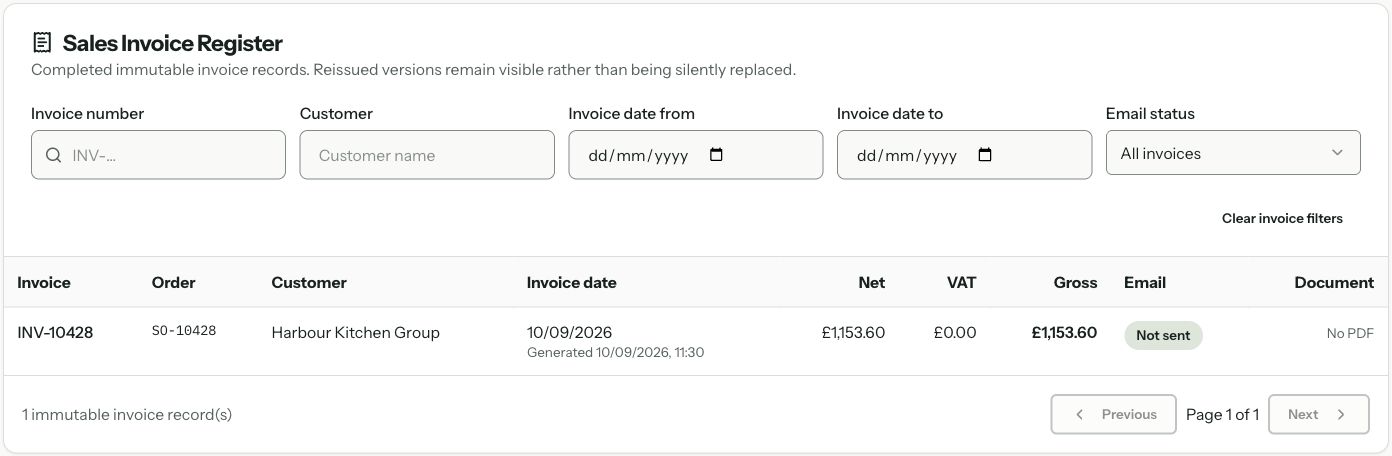
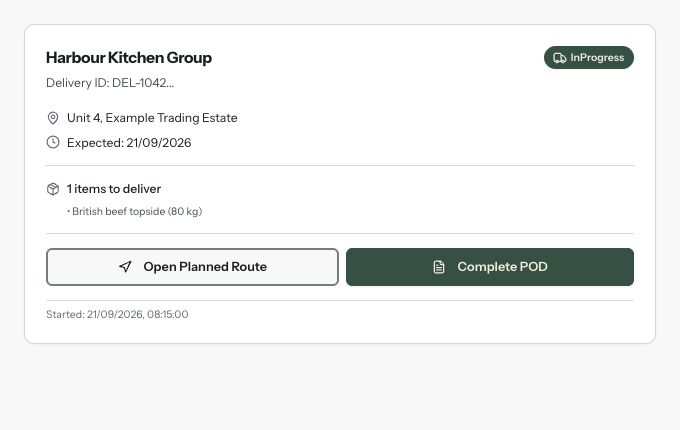
The team prepares and dispatches a delivery run. The assigned driver submits proof of delivery; accepted delivery evidence can create the invoice record that Finance reviews. Issued versions remain available when an invoice is reissued.

Illustrative final weight
82.4 kg at £14/kg
Invoice record
£1,153.60 · not emailed

This separately prepared example shows the later finance state, not a live delivery or export. The register offers CSV downloads. QuickBooks sales-invoice sync and automatic generic accounting exports remain unavailable. Delivery routes require separate HGV-restriction checks.

Actual Larder Sales Invoice Register with fictional invoice INV-10428 linked to SO-10428, total £1,153.60, not sent and no PDF.
Larder interface · fictional dataEnlarge

Inventory & traceability

Per-batch stock

Every unit is part of a batch with country of origin, allergens, supplier lot and use-by date.

Forward and backward traceability

Follow recorded batches through stock, allocation, production and dispatch. The trace depends on the records your team has completed.

Explore this workflow

Scale-station weighing

Capture variable weights against order lines through the Scale Station after compatible hardware and operating rules have been validated.

Explore this workflow

Labels on demand

Generate product, batch and dispatch labels from the linked order and lot records, using templates and barcode rules agreed during implementation.

Orders, sales & pricing

Customer-specific pricing

Maintain customer price lists and order-line rates, with the applicable pricing and approval rules configured for the operation.

Order → pick → dispatch

Keep pricing, allocation and picking together, then record dispatch, proof of delivery and the finance hand-off as the work happens.

Explore this workflow

Routes & POD

Build routes around verified delivery entrances, dispatch through a prepared run and let assigned drivers submit POD evidence. Planners and drivers remain responsible for HGV-restriction checks.

Rebates

Track supplier and customer rebate agreements and accruals against actual volume, with period-close and settlement workflows.

Quality, compliance & finance

HACCP checks

Daily checks on the floor with timestamps, supervisor sign-off and abandon protection.

Audit log

Key state-changing workflows write audit records that can be reviewed by business, user, record or time window.

QuickBooks sync

Configured QuickBooks Online connections include customer, supplier, product and purchase-invoice sync paths. QuickBooks sales-invoice sync remains unavailable.

Built-in assistant

Search supported operational records and SOP knowledge from an in-app assistant. Availability depends on your business’s configuration.

Want a closer look at any of these?

Start with the workflow that matters most. We will first understand the operation, then focus any product walkthrough on the parts that are genuinely relevant.